In this post we will show how to use the AWS CLI tool to download S3 data from a third party. We will use Hyperliquid asset data as an example. For this post we will be using Ubuntu, all the steps should be easily converted using your AI tool of choice.
Step 1 Install the CLI
curl "https://awscli.amazonaws.com/awscli-exe-linux-x86_64.zip" -o "awscliv2.zip"
unzip awscliv2.zip && sudo ./aws/install
Once that unzips you should see a hint to check the version
/usr/local/bin/aws --version
Running that will output the version you downloaded. Example shown below

Step 2 Create AWS Credentials
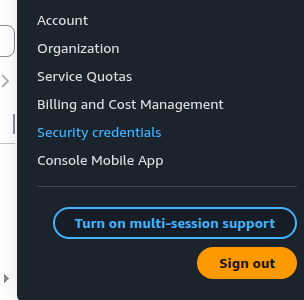
1. Click on your name on the top right of the screen and then click Security Credentials from the dropdown
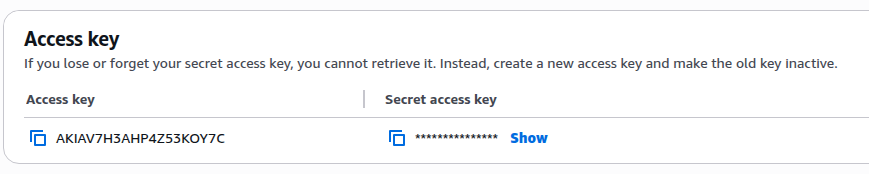
2. Scroll to Access Keys and Click on the Create access key button on top right of screen

3. Then Copy your Access Key and your Secret key
step 4 Input Credentials
To input the credentials in to AWS you should type
aws configure
And then follow the prompts on your terminal

Below are the 4 fields it will ask for
AWS Access Key ID [None]: PASTE_YOUR_ACCESS_KEY_ID
AWS Secret Access Key [None]: PASTE_YOUR_SECRET_KEY
Default region name [None]: us-east-1
Default output format [None]: json
Step 5 Verfiy it works
aws sts get-caller-identity
The command above should print out your Userid on the screen , if you see that then everything is working and can move on to the next step.
Step 3 Interacting with the Bucket
List Files
Run this to see the latest 5 files
aws s3 ls s3://hyperliquid-archive/asset_ctxs/ --request-payer requester | tail -5

And then the command below to see first 5 files
aws s3 ls s3://hyperliquid-archive/asset_ctxs/ --request-payer requester | head -5

Install lz4 on for Opening the files
sudo apt install -y lz4
Download A specific File
# Download one file
aws s3 cp s3://hyperliquid-archive/asset_ctxs/20230520.csv.lz4 . --request-payer requester
Decompress a File
lz4 -d 20230520.csv.lz4 20230520.csv
View last 5 rows

Step 4 Download All the Data
Warning this will cost money, I think its like a few $ for the command we will show below, but the costs can creep up quite fast for some of the larger buckets, so maybe best you check incrementally to estimate the cost for the given data source before you run any commands.
This step we will show how to sync the bucket with a local folder, this is useful because then in future we can just run a command and the CLI will take the diff of what we have vs what is on the bucket and download whatever we don't have yet.
1. Create the directory you want to store the files at
mkdir -p ~/hyperliquid/asset_ctxs
2. and then enter the directory
cd hyperliquid/asset_ctxs
3. Run the Command below to Check how many files and how much data total
aws s3 ls s3://hyperliquid-archive/asset_ctxs/ --request-payer requester --recursive --human-readable --summarize | tail -3
Looks like as of 22 April 2026 there are 1059 days of data (each file is one day) and total of about 8 GB of data

4). Download All the files in our new directory
Now that we are satisfied we can run the actual download, note this make take some time if you are running from a local machine, a server should be much faster.
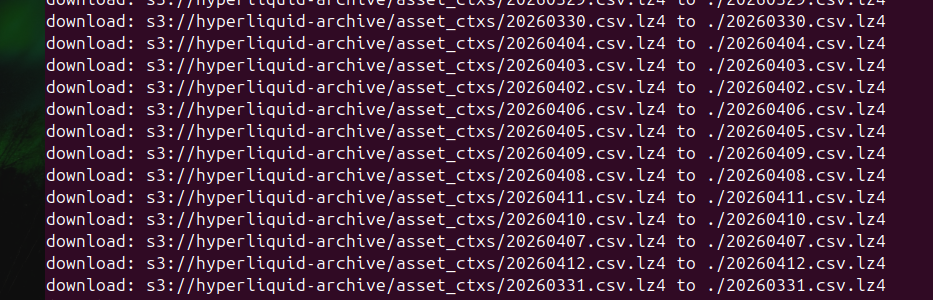
aws s3 sync s3://hyperliquid-archive/asset_ctxs/ . --request-payer requester
Shold see something like the below
And then if we list contents of dir with
ls

So here we see we have a nice sorted list of files in the directory.
Step 5 Updating the Files
These files are not updated very often, but here we do a test to show how it would work if we wanted to update the files without downloading them all over again. For this test we will delete the last available file, and then sync it again to ensure it works.
1) Command below deletes the file
rm 20260412.csv.lz4
2) Do a Dry run to ensure it is only syncing the file we deleted
aws s3 sync s3://hyperliquid-archive/asset_ctxs/ . --request-payer requester --dryrun
And as shown by the output below it has worked

3) Redownload the file
aws s3 sync s3://hyperliquid-archive/asset_ctxs/ . --request-payer requester
That should download the file , now if you run again , you will see a blank output, meaning that the folder is up to date. Ensure you are in the same directory as the one you downloaded the files in, as the command above will just resync everything if you are in the wrong folder.
Step 6 Make a Cron Job to check / Sync new Files
First of all ensure you are in the correct directory, do
ls
and you should see the files.
Now print out the directory to terminal and make a copy of it
pwd
For me it is
/home/admin/hyperliquid/asset_ctxs/
And then Print out your username
whoami

Create the Crontab in user folder
sudo nano /etc/cron.d/hyperliquid_sync
Then replace USERNAME and FOLDERPATH below to run the sync at 3.24 AM each day, paste the filled contents of below in the hyperliquid_sync file we just opened.
24 3 * * * USERNAME aws s3 sync s3://hyperliquid-archive/asset_ctxs/ FOLDERPATH --request-payer requester >> FOLDERPATH/sync.log 2>&1
Even though this data is updated once a month, since we sync there is no harm in having it run often
Give the script correct Permissions
sudo chmod 644 /etc/cron.d/hyperliquid_sync